Loading Images From the Web Into a UIImageView

This is more of a recommendation than a tip, but it totally helped me out, so I thought I’d share.

If you find yourself needing to load quite a substantial about of images form the web, handle caching, and then add them to image views, then I think Kingfisher is a library you should check out.

I use it in my Micro.blog client, Slate, where I’m loading profile pictures, and countless images inside the post content. I simply pass the URL of the image to the UIImageView, and Kingfisher will take care of the downloading, caching, applying, and also apply a placeholder while it’s doing this if you so choose.

Straight from the README on GitHub, the easiest implementation of this is as follows:

let url = URL(string: "url_of_your_image")
imageView.kf.setImage(with: url)

But there is a more complex function you can call to have a whole load more control:

func setImage(with resource: Resource?,
                         placeholder: Placeholder? = nil,
                         options: KingfisherOptionsInfo? = nil,
                         progressBlock: DownloadProgressBlock? = nil,
                         completionHandler: CompletionHandler? = nil) -> RetrieveImageTask
    {

Which you can use like this:

let imageURL = URL(string: "here is the image url")
        let placeholderImage = UIImage(named: "placeholder")

imageView.kf.setImage(with: imageURL, placeholder: placeholderImage, options: nil, progressBlock: { (receivedSize, totalSize) in // Do something with the progress amount, like update a progress bar }) { (image, error, cacheType, url) in // After completion, do whatever you want with the image, any errors, cacheType, and the URL }

I’m a big fan of the library, and if you’re ever in a situation where you need to simply load a few images from the web, or a more image heavy app, then this is my suggestion. It’s certainly a lot easier than writing your own image downloader, and cache system. I spent a while making one myself, but it was never as good as Kingfisher.

Kingfisher on GitHub

My World Cup Predictions 🌍 🏆 ⚽️ 🏟

Group Stages

Group A

  • Winners: Uruguay 🇺🇾
  • Runners up: Egypt 🇪🇬

Group B

  • Winners: Spain 🇪🇸
  • Runners up: Portugal 🇵🇹

Group C

  • Winners: France 🇫🇷
  • Runners up: Australia 🇦🇺

Group D

  • Winners: Argentina 🇦🇷
  • Runners up: Nigeria 🇳🇬

Group E

  • Winners: Brazil 🇧🇷
  • Runners up: Switzerland 🇨🇭

Group F

  • Winners: Germany 🇩🇪
  • Runners up: Sweden 🇸🇪

Group H

  • Winners: England 🏴󠁧󠁢󠁥󠁮󠁧󠁿
  • Runners up: Belgium 🇧🇪

Group G

  • Winners: Colombia 🇨🇴
  • Runners up: Poland 🇵🇱

Semi-Finals

  • Germany 🇩🇪
  • France 🇫🇷
  • Brazil 🇧🇷
  • Spain 🇪🇸

Final

  • Winners: Germany 🇩🇪 🏆
  • Runners up: Brazil 🇧🇷 🥈

Formatting Improvement in Slate

A massive improvement has just been made to Slate! I’ve found a new way to convert the html content of a post into a format the app can read.

It’s so much faster, actually supports things like bold and italics, lists appear how you’d expect them to, and also doesn’t mess around with extra line breaks!

The speed increase is what about shocked me though, because the old method took about the same time it took to request the actual data from the Micro blog api. It was only ever a temporary solution, but this works near instantly.

Counting Enum Cases in Swift 4.2

Previous to Swift 4.2, the way you (or at least, I) count the number of cases in an Enum, would be to create an extra case called lastValue, or count. This, of course, was only useful if the raw type was an Int.

enum Option: Int {
    case one
    case two
    case count
}

Option.count.rawValue

Well now, if you make it conform to the CaseIterable protocol, you can use the allCases array. Which is generated automatically, and contains all the cases in the order they were defined.

enum Option: CaseIterable {
    case one
    case two
}

Option.allCases.count

This also means you can not only use it to count the amount of cases, but iterate over all of them much easier.

The allCases value is only generated when the Enum doesn’t use associated values, in which case you will have to do this manually.

enum Option: CaseIterable {
    case one
    case two(Bool)

static var allCases: [Option] = [.one, .two(true)] }

Slate Development Log #7

Just a small update.

After putting a task in Slate off for at least a few months, I’ve got a big chunk of work out of the way, which makes future development so much easier.

Basically, when I first started developing the different sections (Timeline, Mentions, Discover, and Favourites), the code was completely split, and usually badly copied across classes.

I’ve done some work with protocols and inheritance, and now the before mentioned 4 parts of the app are using 99% the same code, except from the slight change in context. For example Mentions is exactly the same, other than a title change, and a few letters in the API endpoint.

As with most other people, WWDC is taking up a lot of time for me. So I think after I do just a tiny bit more work on composing posts, I’ll send another build out. I have composing working in my current build, but my 2 minimum requirements for the next public beta is a minimal version of Markdown formatting, and also replying to posts.

Hiding Extra Separators on a UITableView

When you’re using a UITableView, and there isn’t enough cells to fill up the visible table, it still fills the remaining space with separators. In just one line of code, you can change that to what is probably, the most expected result.

tableView.tableFooterView = UIView()

It’s really that simple.

Check out the full Playground code.

My New Swift Tips Blog

Regarding my ramblings yesterday about starting a new blog for swift development tips, I’ve decided I will host it on my main blog.

However, it is a separate category, that is excluded from the main feeds. There’s still a link in the navigation bar though.

The first post is super simple, and the actual tip is 1 line of code. It’s how to hide extra separators on a UITableView.

I may try and work out a schedule for regular posts, but it may just be slightly sporadic. It’s not going to be full of big tutorials though, I’d rather just share small tips for now.

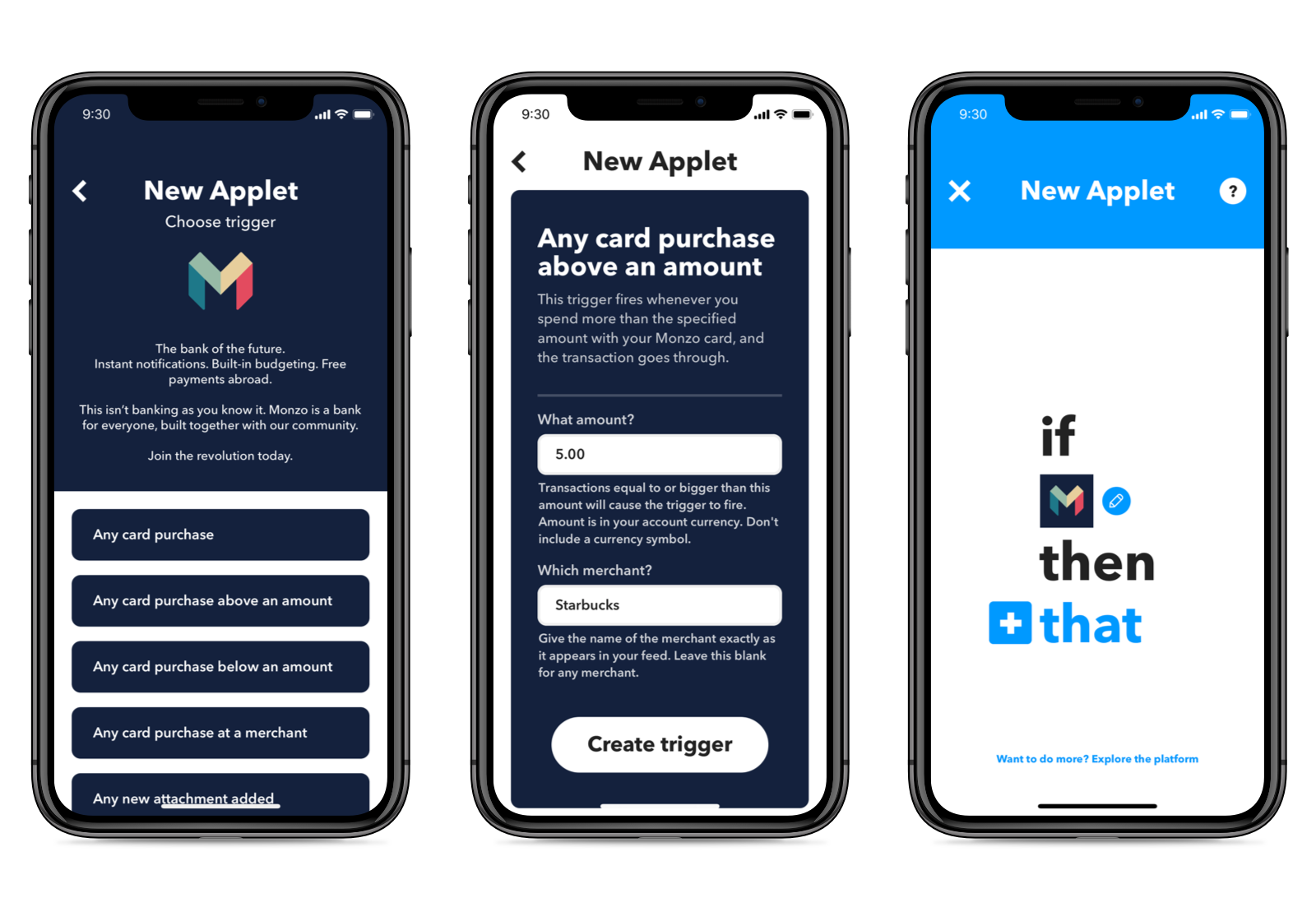
Automate your financial life with Monzo and IFTTT

We believe that a truly smart bank should empower people to manage their money in a way that suits them. Today, we’re proud to announce that we’re the first bank to partner with the world’s largest automation platform — IFTTT!

In a nutshell, IFTTT lets you personalise how you manage your money. You can create your own rules, called Applets, to connect your Monzo account to the services you regularly use. For example, say you use the iOS Health app to log your calories. With IFTTT, you could enable our pre-made Applet that means every time you buy anything at Starbucks, you’ll automatically log 200 calories on iOS Health.

Yet nother reason why Monzo is the best bank in the world.

Read about Monzo’s IFTTT Integration.

Automatic Workout Detection

If there’s one thing I forget to do, is start a workout when I go out for a walk (I don’t run). But thankfully, watchOS will now detect when you’re starting a workout, and then prompt you to start one.

It appears as a notification on your watch, and from there you can start a workout, without navigating to the app itself. I’ve also seen this appear on my watch (I use the Siri Watch face), but I’m not sure if this is a Siri suggestion based around past behaviour, rather than detecting a workout at that point in time.

You might think that you’d lose some of the data if you waited until the notification appeared, but it also retroactively collects all the workout data, and adds it to the new workout. That’s really an extra step, and makes it such a great addition.

I walk a lot, and I hardly ever start a workout on my watch, either because I’ve forgot, or I just can’t be bothered. I’m hoping this detection is reliable enough to make me never need to start one manually again. But that could just be me being lazy.

It supports 8 types of workouts, and they’re the most common:

  • Outdoor/Indoor Run
  • Outdoor/Indoor Walk
  • Elliptical
  • Rower
  • Pool/Open Water Swim

Oh, and if you think that isn’t good enough, it also has the same detection for when you’ve ended your workout, and it will prompt you to end it on your watch.

Read more of my coverage of WWDC here.

Improvements to Notifications

Very unsurprisingly, iOS 12 brings better notifications support. There’s not too many changes, but they are certainly most welcome.

The big one is grouped notifications. It’s probably the notification feature I’ve been wanting the most, and Android constantly used to make me jealous with it.

I’ve not quite worked out the requirements for them to group together, because I’ve seen iMessage conversations automatically group, but other apps group after 4 or so individual notifications.

There are three options for grouping your notifications, automatic, by app, and of course, none. The interesting one is automatic grouping, because apps can actually help the OS work out what notifications should be grouped together, by providing different identifiers. I’m not going too too much in the technical side, but you’ll notice that Messages.app will group messages from conversations together, but each of these are separate on your lock screen.

There’s going to be more to find out about grouping though, as I’m sure there are different quantifiers which will change the way the system handles them.

In regard to the actions you can take on notifications, you now get to control how any apps notifications are configured, right on the lock screen. All you need to do is swipe right-to-left, and tap Manage. Then you’ll find three different options (depending on the current settings):

  • Deliver Quietly/Prominently (The opposite of what is currently set)
  • Turn Off
  • Settings (This takes you straight to the app’s notification settings, so you can fine tune all of the settings.

These are all welcome options, and I particularly like the deliver quietly, for apps that I want information from, but don’t care that much about it. The options have always been available for these settings, but they’ve always been a hassle to get to. And the Quietly/Prominent options make it simple and clear so everybody can understand.

Do Not Disturb

Something else related to notifications, is the Do Not Disturb, which also received a few improvements.

It’s actually been split into two different levels of not disturbing you, and that’s differentiated by the Bedtime Mode option. So normally Do Not Disturb just means not to notify you, but if you turn on Bedtime Mode, it will keep your screen completely free of distractions until the time period is over, or you turn it off. Something that makes a lot of sense.

It also benefits from “Siri” (the intelligence in your device, rather than the voice), because it’s something else it can suggest for you. It can be triggered by a time, location, or event. I’ve already seen this a few times, once where it suggested I turned it on, but only until an event in my calendar was over. Pretty clever.

These are some fantastic improvements to how notifications work in iOS, but I still would like one more thing from Android. And that is to set specific notification categories. You can do this already as an app, in that it’s the way iOS can group notifications. But Android users can select to mute specific categories from apps, making it an even more personalised system. However, that’s very much want, and not a need.


Read more of my coverage of WWDC here.